Now Hiring: Are you a driven and motivated 1st Line IT Support Engineer?

Office Hours: 10:00am-6:00pm


Call Anytime 24/7


Mail Us For Support


Office Address

How to Track WordPress Site Traffic: A Beginner-Friendly Analytics Tutorial

  • Home
  • SEO Marketing
  • How to Track WordPress Site Traffic: A Beginner-Friendly Analytics Tutorial
How to Track WordPress Site Traffic

If you’re running a WordPress website, one of the most important aspects of growing your online presence is understanding how visitors interact with your site. Knowing your traffic sources, popular pages, and user behavior helps you make informed decisions, optimize your website, and boost engagement.

In this beginner-friendly tutorial, we’ll walk you step by step on how to track WordPress site traffic, even if you’ve never used analytics tools before.

Why Tracking WordPress Site Traffic is Important

Before diving into tools and setup, it’s essential to understand why tracking traffic matters:

  1. Measure Performance: See how many people visit your website daily, weekly, or monthly.
  2. Identify Popular Content: Understand which blog posts, pages, or products get the most attention.
  3. Improve Marketing Strategies: Know which channels (social media, search engines, or referrals) bring visitors.
  4. Optimize User Experience: Analyze user behavior to improve website navigation, speed, and content.
  5. Increase Conversions: Tracking helps you identify which pages convert visitors into subscribers or customers.

Without traffic data, it’s impossible to know whether your efforts are paying off or if changes are needed.

Step 1: Choose the Right Analytics Tool

The most widely used tool for tracking website traffic is Google Analytics, and for beginners, it’s free and easy to set up. Other options include:

  • MonsterInsights – WordPress plugin that integrates Google Analytics for beginners.
  • Jetpack Site Stats – Built-in WordPress plugin for simple traffic insights.
  • Matomo Analytics – Privacy-friendly alternative to Google Analytics.

For this tutorial, we’ll focus on Google Analytics, as it’s the most comprehensive and widely used.

Step 2: Set Up Google Analytics for Your WordPress Site

Step 2.1: Create a Google Analytics Account

  1. Go to Google Analytics and sign in with your Google account.
  2. Click Start measuring and fill in your Account Name.
  3. Set up a Property for your website with your website name, URL, and timezone.

Step 2.2: Get the Tracking Code

Once the property is created, you’ll get a Global Site Tag (tracking code). This code tracks your site’s traffic and sends data to Google Analytics.

Step 2.3: Add the Tracking Code to WordPress

There are a few ways to add Google Analytics to WordPress:

  1. Using a Plugin (Recommended for Beginners):
    • Install MonsterInsights or Site Kit by Google plugin.
    • Follow the plugin setup wizard to connect your Google Analytics account.
  2. Manually Adding the Code:
    • Go to Appearance → Theme Editor → header.php
    • Paste the tracking code just before the </head> tag
    • Save changes

Note: Using a plugin is safer, especially for beginners, as it prevents issues when updating themes.

Step 3: Understand Your Google Analytics Dashboard

Once Google Analytics is connected, it will take 24–48 hours to start showing data. Key areas to focus on:

  1. Real-Time Report: Shows live visitors on your website.
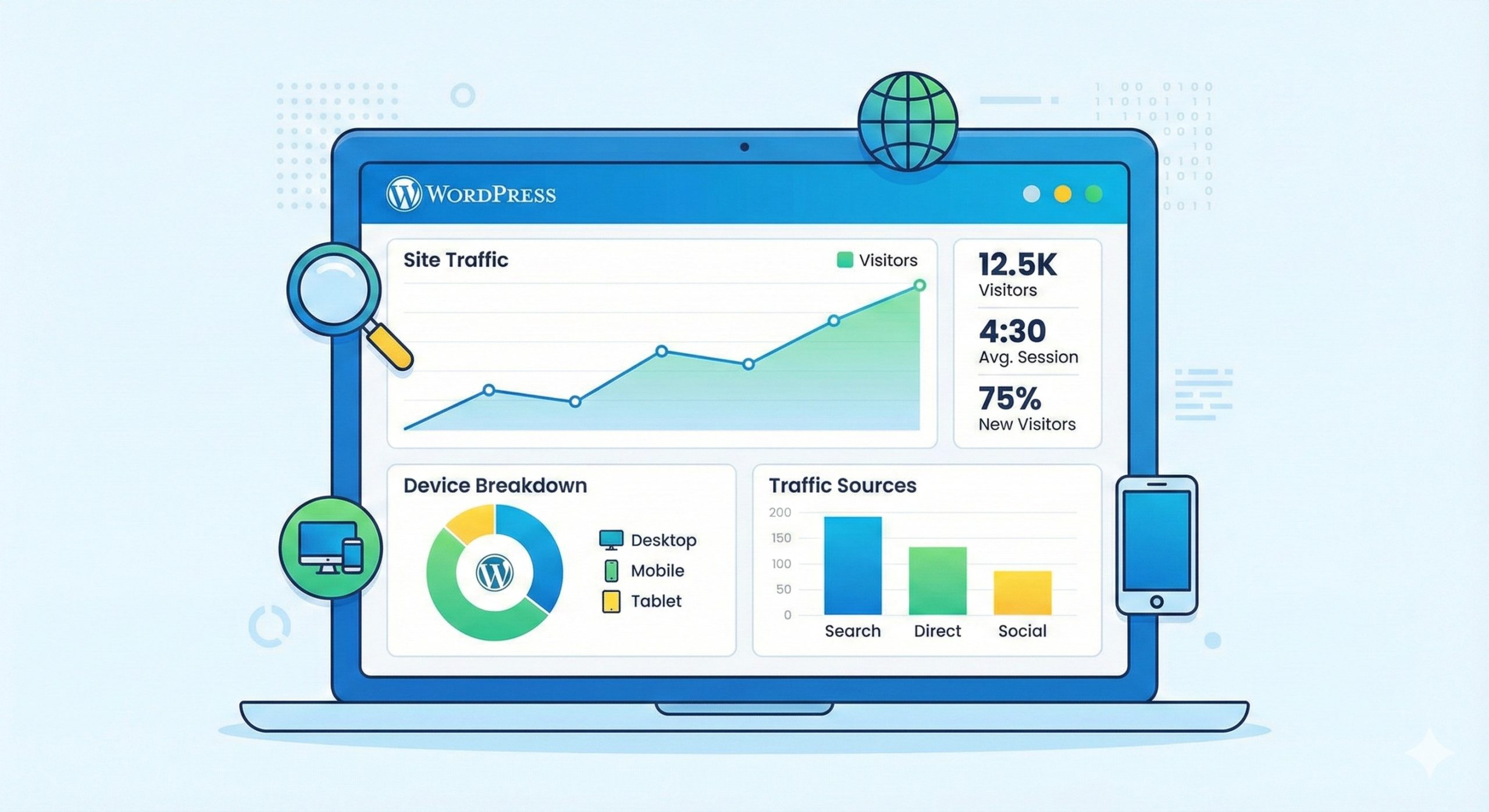
  2. Audience Report: Demographics, location, and devices your visitors use.
  3. Acquisition Report: Discover where your traffic comes from—search engines, social media, or referrals.
  4. Behavior Report: See which pages and posts are most popular and how visitors navigate your site.
  5. Conversions: Track goals like newsletter sign-ups, purchases, or form submissions.

Step 4: Track Traffic Using MonsterInsights (Optional)

For beginners who want simplified insights inside WordPress:

  1. Install MonsterInsights plugin.
  2. Connect it to your Google Analytics account.
  3. Access reports directly in your WordPress dashboard:
    • Overview of pageviews, sessions, and bounce rates
    • Top-performing posts and pages
    • Referral sources

This method removes the need to log in to Google Analytics separately and makes insights more accessible.

Step 5: Tips to Make the Most of Your Analytics

  1. Set Up Goals: Track conversions like newsletter subscriptions or sales.
  2. Use UTM Parameters: Identify which campaigns drive traffic using custom URLs.
  3. Check Regularly: Weekly monitoring helps you understand trends.
  4. Analyze and Optimize: If a page has high traffic but low engagement, improve its content or call-to-action.

Common Traffic Mistakes to Avoid

  • Ignoring mobile users—always check device reports.
  • Not segmenting traffic by source—knowing whether visitors come from Google, Facebook, or other sites is crucial.
  • Overlooking bounce rate—high bounce rate can indicate poor user experience.

By avoiding these mistakes, you can get more accurate insights and make smarter decisions.

Conclusion

Tracking WordPress site traffic is essential for growing your online presence, whether you run a blog, business website, or e-commerce store. With Google Analytics and beginner-friendly plugins like MonsterInsights, even beginners can understand visitor behavior, identify popular content, and optimize their website for better performance.

Start tracking your website today, and use the insights to improve engagement, increase conversions, and grow your audience.


Comments are closed